What is error 403? 10 definitive solutions to fix error 403
What is error 403? A 403 error is like a big lock on an iron door in your path. A lock like a stern guard who won't let you in unless you show him your pass. This sudden error may negatively affect your user experience or your site's audience. For this reason, to prevent this from happening, you need to prepare your entry permit. There are several reasons for not allowing you to pass through this iron door.
Join us in this blog Lestar server training article to check the reason for displaying the 403 error and how to fix it. We will also examine how and with what permission to resolve any type of closed lock and forbidden access such as 403 errors. In this article, we will explain the types of 403 forbidden error and why it appears, and then we will introduce 10 methods to fix the 403 error.
What is error 403?
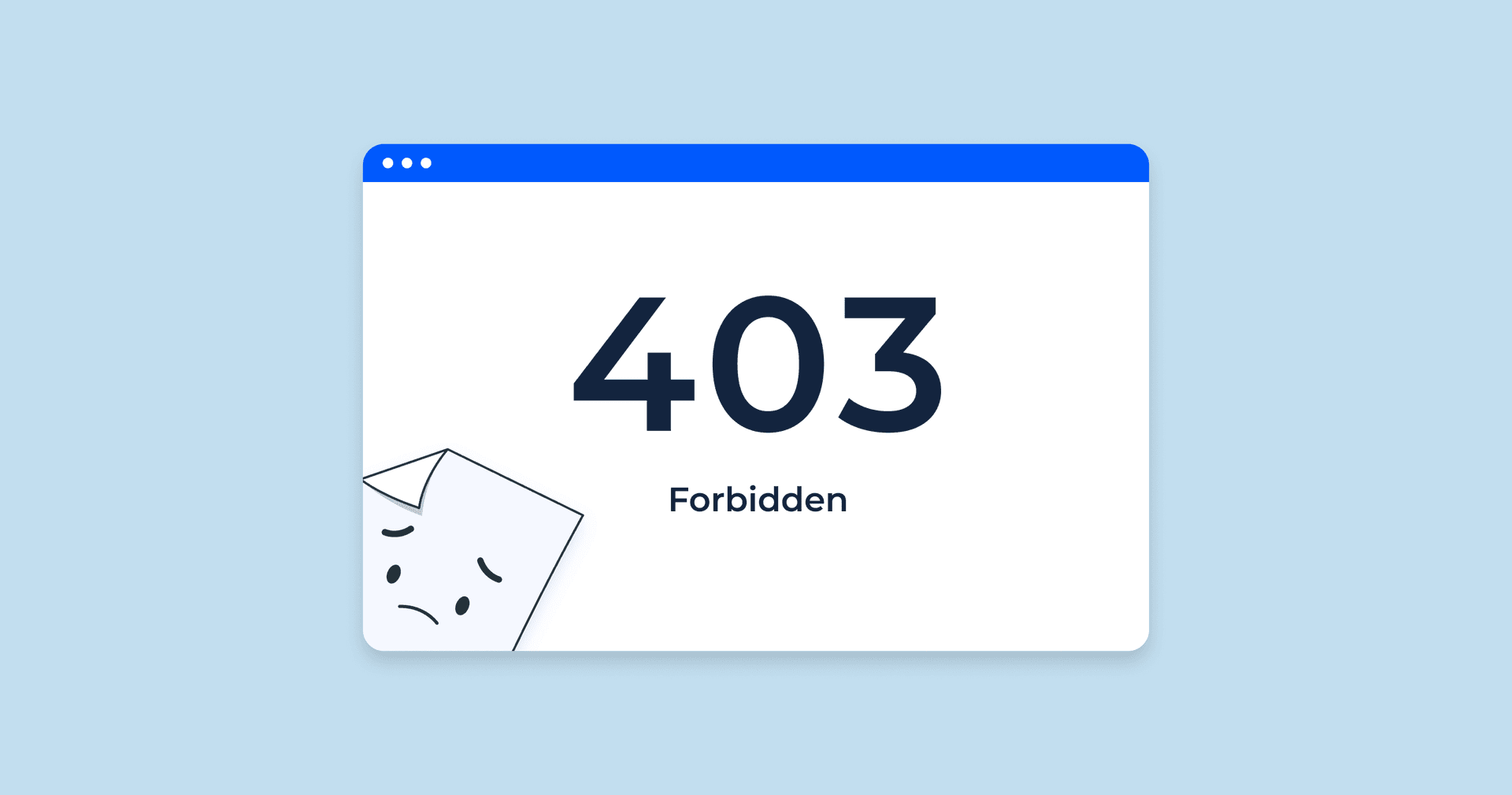
Error 403 is a type of HTTP status code that indicates that the web server has received your request but does not allow your IP to connect to the desired page, that is, your access to the desired website is unauthorized or the desired resource is currently unavailable.
At the point where you don't have the necessary permission to access the website, the 403 forbidden error acts like a smart guard for the web server to protect IPs that are recognized as unauthorized from entering the target server. In simple words, the meaning of the 403 Forbidden error message is:
"You do not have permission to access / on this server"
403 Forbidden
The reason for the 403 error
Display of error 403 usually happens due to incorrect configuration and settings on the client side. In fact, the server knows exactly what you are looking for, but for some reason does not allow you to enter; As a result, it is not possible for you to visit the desired page.
• At first, the problem may be the file or folder permission settings, or the website owner has changed the settings so that a normal user does not have access to it, or the permissions are not set correctly.
• The second most common reason for WordPress 403 error may be due to wrong settings made on the .htaccess file. Solving this problem can be done with a simple setting.
• Another reason may be due to the absence of the main page or so-called index of the site. Actually, the name of the main website page is not in the index.html or index.php file.
• Malfunction in the plugin is another reason for the occurrence of WordPress error 403. Two or more incompatible plugins may be active or not configured correctly.
• A 403 error will appear if the domain name ends or changes to an incorrect IP address that is not currently available.
• The presence of malware and attacks on the htaccess file may also cause continuous disruption of this file. As a result, you will occasionally see various errors, including WordPress error 403.
• The site owner may have updated and changed the link of your desired page; While in your browser cache, there is the same link as before.
How is the 403 error displayed?
As with all types of HTTP errors, the way 403 errors are displayed varies on different platforms. We mention some of the most common types of 403 errors that you may have come across.
• Nginx 403 Forbidden error ("403 Forbidden - nginx)
• 403 - Forbidden: Access is prohibited. (403 – Forbidden: Access is denied)
• You do not have permission to view this page. (You are not authorized to view this page)
• forbidden error; You do not have permission to access this server. (Forbidden – You don't have permission to access / on this server)
• 403- Prohibition error, you are not allowed to access this address. (Error 403 – Forbidden403 – Forbidden Error – You are not allowed to access this address)
• HTTP Error 403 - Forbidden You do not have permission to access the document or program you requested. (HTTP Error 403 – Forbidden – You do not have permission to access the document or program you requested)
If you are using Nginx web server, you will probably see error 403 as shown in the image below.
403 in Nginx
Fix 403 Forbidden error
After we find out what is the reason for displaying error 403, it's time to solve it. If this error has appeared on your website, you need to fix the 403 error on the server side.
• Confirmation of record A
• Removal of any type of malware
• Edit file ownership
• Checking the .htaccess file
• Upload the main command page
• Disabling site plugins
• Clear cache and web browser history
• Reset access to site files and folders
The first solution: check the .htaccess file
It is interesting to know that when various errors occur on your site, the htaccess file plays the main role in solving the problem. How to fix the 403 error through Cpanel and accessing the htaccess file is as follows:
Step 1: Enter the File Manager folder through the control panel.
Step 2: In the public_html folder, find the htaccess file
* If you don't find the file, click on the Show Setting option at the top right corner of the screen and check the Show Hidden File so that the hidden files will appear for you.
Step 3: Right-click on the file and click Download to create a backup copy of this file.
Step 4: Now, you can delete the file after making a backup copy.
Step five: Check your site. If the access was easily possible and you did not see a trace of the 403 error, it means that there is an intrusion agent in the htaccess file.
Step 6: To create a new htaccess file, enter your WordPress dashboard and click on settings and then permalinks.
Seventh step: Without making any changes, click the Save Changes button at the bottom of the page to create the htaccess file.
Second solution: Reset file and directory permissions
File and directory permissions are similar to the home key. Anyone who has this key will also have access to read, write or control the files. If the file or directory permissions are incorrect, you may encounter an http 403 error. This means you have a wrong key and you can't log in. That's why you need to change this key. In other words, reset the file or directory permissions. For this, you need to edit the FTP folder. You can use Filezilla file manager to access this folder.
Step 1: Connect to your server via FTP or control panel.
Second step: Right-click on the public_html folder and select File Attributes.
Step 3: Enter 755 in the Numeric value field and select the Apply to Directory only option.
In general, the numerical value of 755 in the Numeric value section is related to folder access, the value of 644 is related to static or static content, and the value of 700 is related to dynamic or dynamic content.
Fourth step: After changing the access to the file, repeat the second and third steps again and this time enter 644 in the Numeric value and check the Apply to files only option.
After doing these steps, check your site once again to see if you got rid of the 403 error or not.
The third solution: deactivating WordPress plugins
If you have progressed to this point in the article "What is Error 403" and none of the methods mentioned solved the problem, you should probably go for plugins. There are one or more intrusive plugins that are preventing your website from working properly. Instead of manually disabling the plugins individually, we suggest disabling them all at once through the hosting panel and check if you managed to fix the 403 error or if you still need to go to the next solutions.
Step 1: To disable it at once, log into your hosting panel and go to the public_html section from the File Manager folder. Then select the wp-content folder. Step 2: Rename the plugins folder with another name like disabled-plugins. Renaming the file will disable all plugins.
Step 4: Check the site. If you don't see any trace of the 403 error, it means there is an intruder in the plugins that needs to be disabled. Now activate the plugins one by one and check if the site is working or not.
At this point, if your site is still struggling with the 403 forbidden error, it is better to leave the beard and scissors to your hosting service to fix the problem. If you want to do it yourself, then go to the next solution.
Fourth solution: Upload a new index page
One of the possible reasons for the 403 error may be due to changing the home page of your website. The homepage of the website must be in the index.html or index.php file of your website. If the main page of the site has a different name in one of these files, you need to use the following methods to solve this problem:
• Create a redirect to the main page
• Rename the home page to index.html or index.php
If you plan to keep your website's current name, create an index.html or index.php page in the public_html directory and redirect to your website's home page. To create a redirect, you can do the following:
1. Create a new index.html or index.php file in the public_html directory.
2. Open the .htaccess file.
3. Then add the following code to the .htaccess file to redirect the index.html or index.php files to your home page. In the following command, replace homepage.html with the name of your site's home page.
Redirect /index.html /homepage.html For example, let's say the name of your website's homepage is lastaar.html. To redirect to the main page, we put the following code in the .htaccess file:
Redirect /index.html /lastaar.html Fifth solution: Check the ownership of the file In the fifth solution of the 403 error solving methods, we will check the ownership of the files. If you are using a Linux server, the owner of the file is the person or group of people who have permission to read, write and control the files. If the ownership of a file is wrong, you will face a 403 error. You can connect to your Linux web server via SSH to edit and review the file. Then, check the ownership of the file through the following command:
ls -1 You will get output like the following:
-rwxrw-rw- 1 20 Jul 20 12:00 filename.txt Look at group and owner. In this section, the username of your hosting account should be placed. If you see a different expression in the owner field, use the Linux chown command.
chown For example, let's say your hosting account username is lastaar. Therefore, in the owner section there should be a command like the following:
chown lastaar filename.txt Don't worry if you don't connect to this section or you don't feel comfortable using SSH. Just send a message to the support of your hosting service and they will guide you.
Sixth solution: Check the domain name and IP
If your domain IP is connected to an address other than the domain or the domain name does not match the IP, a 403 error will appear. In this case, you need to check your domain's A Record and see if DNS is set correctly.
Seventh solution: Do a general scan to detect malware
What is the seventh solution to fix error 403? One of the main reasons for the 403 error is the existence of malware that remains active even after editing the file and all the solutions above. To detect and scan malware in WordPress, you can use plugins such as Sucuri or Wordfence. Then, if your WordPress site is infected with malware, you can remove it through these plugins.
If you failed to remove the malware with the antivirus or plugin, if you have a backup copy of the database, you can restore it. Of course, this is applicable if you made a backup before the website was infected with malware.
Eighth solution: Clear the history or cache of the website
Browser cache or cookies may also cause a 403 error. Because the browser cache stores data to load faster when you visit the site again, the cached link may differ from the updated website link. In this case, clearing the browser cache can help fix the 403 error.
Solution 9: Disconnect or connect your IP changing tool
The same thing that we all experienced when visiting many foreign sites, connecting to these sites without using the IP change tool, caused a 403 error. In this case, you can easily solve this problem by turning on the tool to change your IP or change the IP of the server and succeed in solving the 403 error.
10th solution: Use the Sitechecker tool
The Sitechecker tool provides you with a detailed report of the site by easily checking the files and links of your website. This website crawler is an accurate SEO tool. You can continuously check site pages for 403 errors and detect and fix any errors on your website with this tool.
Subscribe
Get our latest posts in your inbox.